Trefoila
From installation to your first optimized lens in minutes
Getting Started
This guide walks you through installing Trefoila, opening your first design, and running a complete analysis workflow — from a blank system to an optimized lens with spot diagrams and MTF curves. No prior experience with optical design software is assumed.
If you are already up and running and want detailed reference documentation, see the User Manual.
1. System Requirements
| Platform | Minimum | Notes |
|---|---|---|
| macOS | macOS 12 Monterey or later | Apple Silicon (M1/M2/M3) and Intel both supported |
| Windows | Windows 10 (64-bit) or later | Windows 11 recommended |
| Linux | Ubuntu 20.04 LTS or equivalent | Any glibc 2.31+ distribution should work |
Additional Requirements
- Python not required — Trefoila ships as a standalone application. No runtime installation needed.
- RAM: 4 GB minimum, 8 GB recommended for large systems and Monte Carlo tolerancing.
- Disk: ~400 MB for the application and glass catalogs.
- Display: 1280 × 800 minimum; 1440 × 900 or larger recommended for a comfortable panel workspace.
2. Download & Install
Download Trefoila from trefoila.app. The correct installer for your platform is detected automatically, or you can choose manually from the downloads page.
macOS
- Download the
.dmgdisk image from the Trefoila website. - Double-click the
.dmgfile to mount it. A Finder window opens. - Drag the Trefoila icon into the Applications folder shortcut shown in the window.
- Eject the disk image. Open Applications and double-click Trefoila to launch.
- On first launch macOS may show a security dialog. Click Open Anyway in System Settings → Privacy & Security if prompted.
Windows
- Download the
Trefoila-Setup.exeinstaller. - Double-click the installer. If Windows Defender SmartScreen appears, click More info → Run anyway.
- Follow the installation wizard: accept the license, choose an install location (default is fine), and click Install.
- Launch Trefoila from the Start menu or the desktop shortcut created by the installer.
Linux
- Download the
Trefoila-x86_64.AppImagefile. - Open a terminal and make it executable:
chmod +x Trefoila-x86_64.AppImage - Run it:
./Trefoila-x86_64.AppImage - Optionally move the AppImage to
~/Applications/and create a desktop launcher for convenience.
libfuse2 installed (sudo apt install libfuse2 on Ubuntu). If AppImage fails to mount, run with --no-sandbox or extract with ./Trefoila-x86_64.AppImage --appimage-extract and run the extracted binary directly.
3. First Launch
When you open Trefoila for the first time, a splash screen appears. It shows your license status and lists the built-in sample designs. Click any design row to load it directly, or dismiss the splash to start with an empty system.
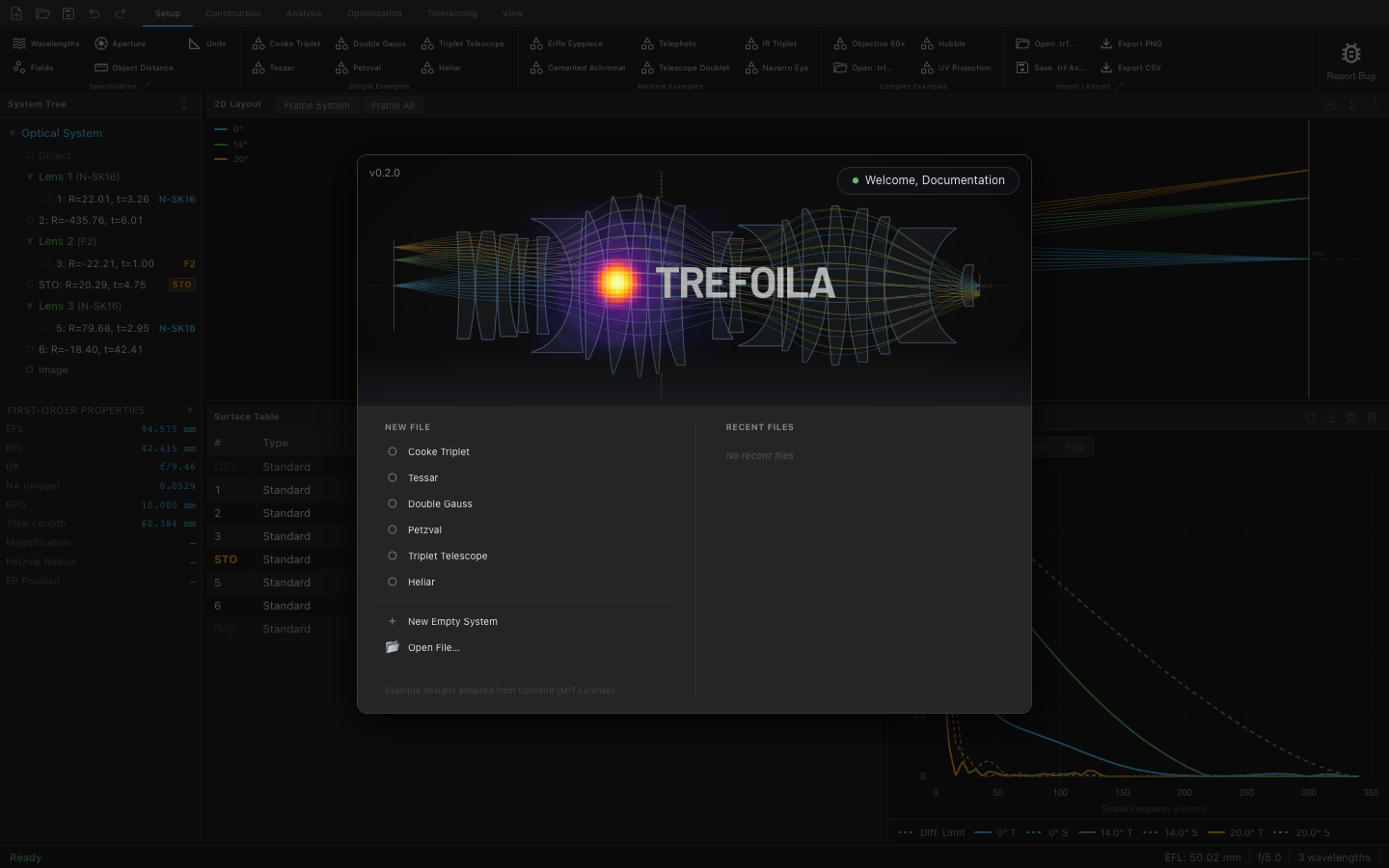
After dismissing the splash, the main window appears with the ribbon toolbar at the top and the panel workspace in the center. You can also reach sample designs any time from the Setup tab.
4. Open a Sample Design
Trefoila ships with fully configured example systems. The Cooke Triplet is a classic photographic lens (f/5, 10 mm entrance pupil) and is a good starting point for exploring the application.
- Click the Setup tab in the ribbon.
- In the Samples group, click Cooke Triplet.
After opening, the 2D Layout panel appears automatically, showing the lens cross-section with ray fans traced through the system.
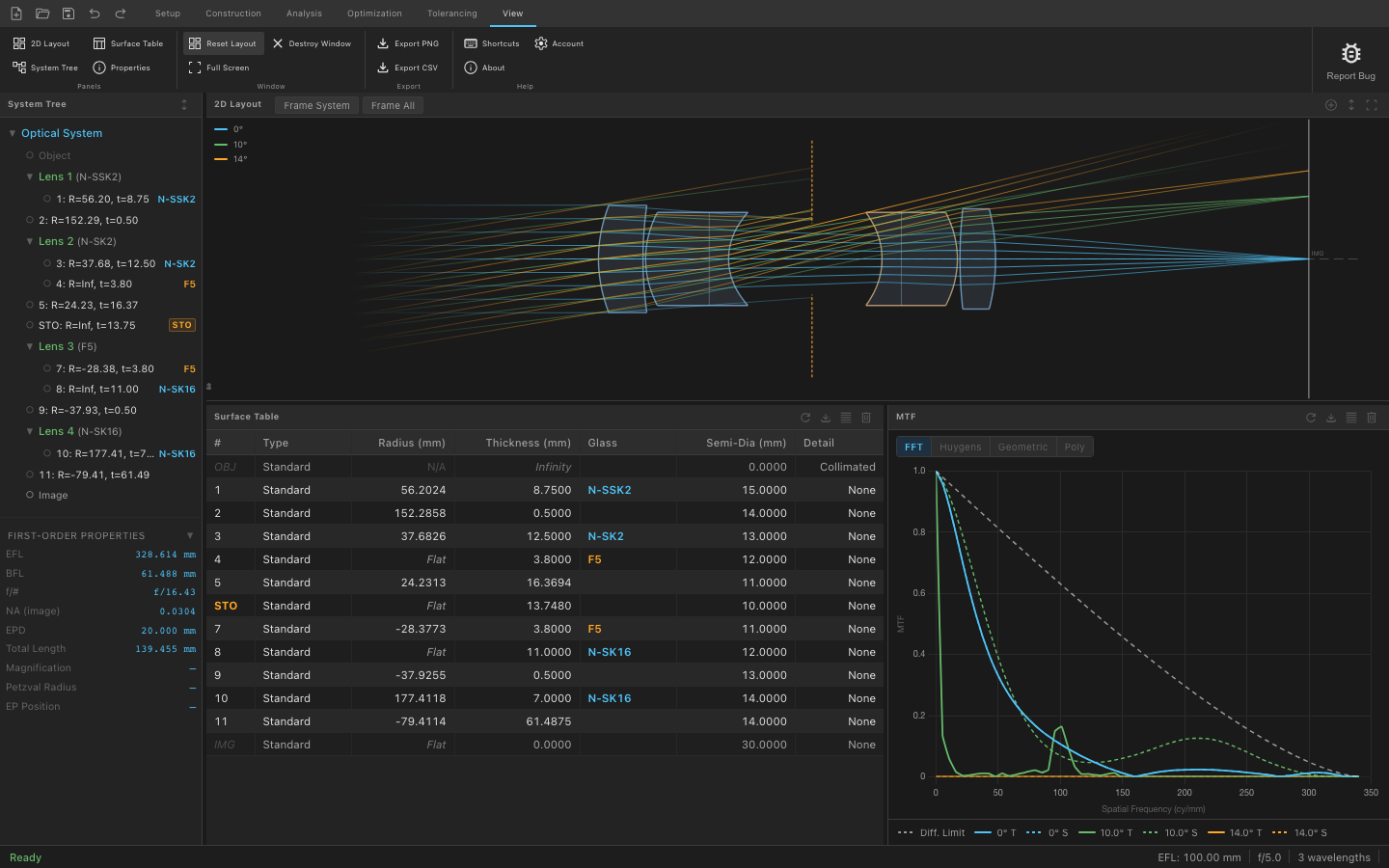
The status bar at the bottom now shows the system's first-order properties: EFL, f/#, and Strehl ratio. These update automatically whenever you change any surface parameter.
5. Understanding the Interface
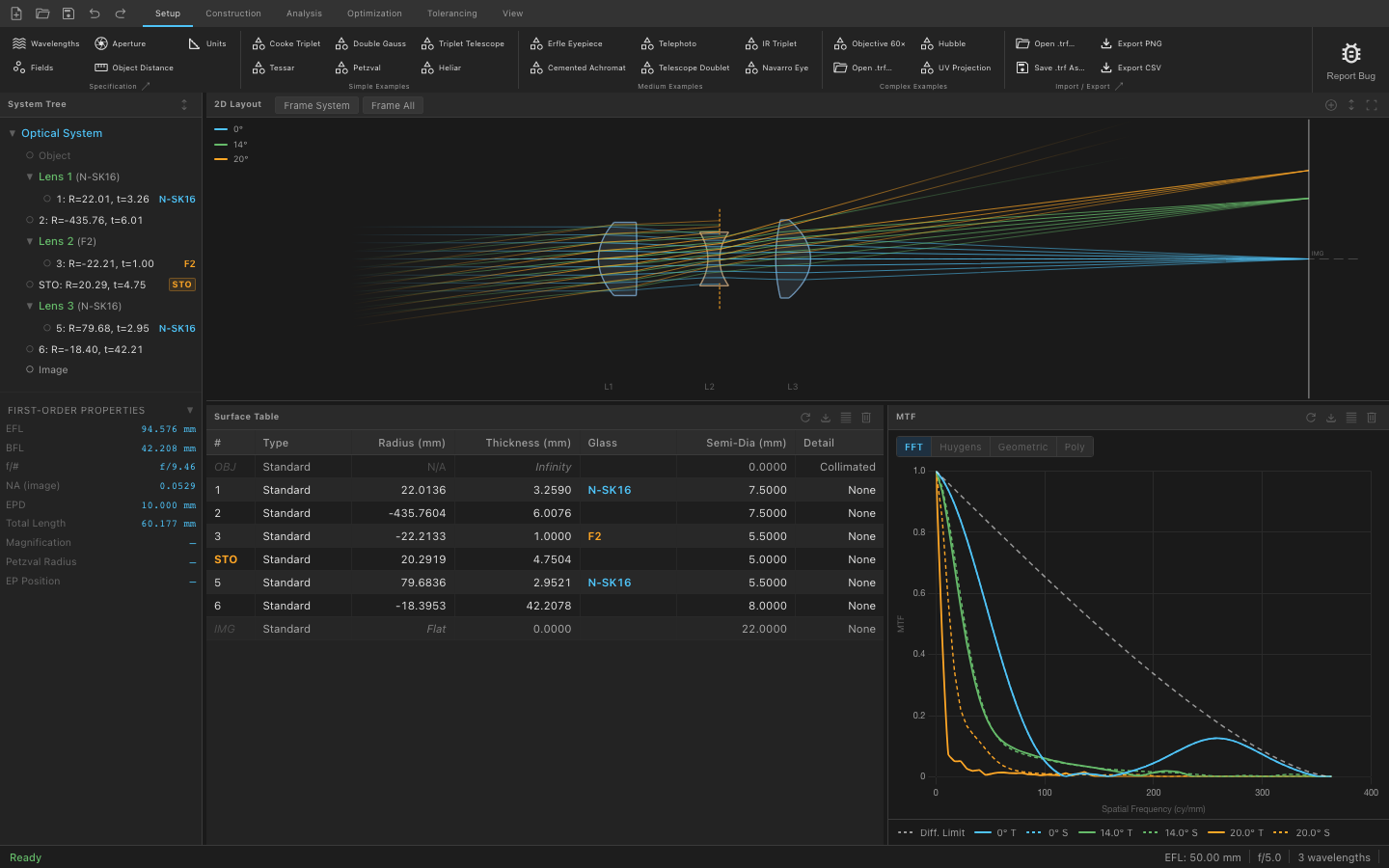
The main window has four regions:
| Region | Location | Description |
|---|---|---|
| Ribbon Toolbar | Top | Six tabs — Setup, Construction, Analysis, Optimization, Tolerancing, View — each grouping related commands |
| System Tree | Far left (narrow strip) | Hierarchical view of surfaces, wavelengths, fields, and aperture |
| Panel Workspace | Center / right | Flexible tiled area where analysis panels, the layout, and the surface table live |
| Status Bar | Bottom | Live EFL, f/#, Strehl ratio, and background task progress |
Ribbon Tabs

| Tab | What you do here |
|---|---|
| Setup | Define wavelengths, field points, aperture type and size, and object distance |
| Construction | Edit the surface table — add/remove surfaces, set radii, thicknesses, glass, and aperture shapes |
| Analysis | Open analysis panels: spot diagram, ray fan, wavefront, PSF, MTF, distortion, and more |
| Optimization | Define design variables and merit function operands, then run the optimizer |
| Tolerancing | Run sensitivity analysis and Monte Carlo simulations to predict yield |
| View | Control panel layout, zoom the 2D view, and export images or data |
Panel Workspace
Panels can be opened from the Analysis ribbon tab, resized by dragging their borders, and tiled side by side. Every panel recomputes automatically when the system changes — there is no manual "update" button.
6. Setting Up a Simple Lens
This section walks through entering a lens from scratch. If you are working with the Cooke Triplet sample, follow along to understand each step — you can inspect the values already entered without changing them.
6.1 Surface Table
Click the Construction tab in the ribbon. The Surface Table panel opens in the workspace.
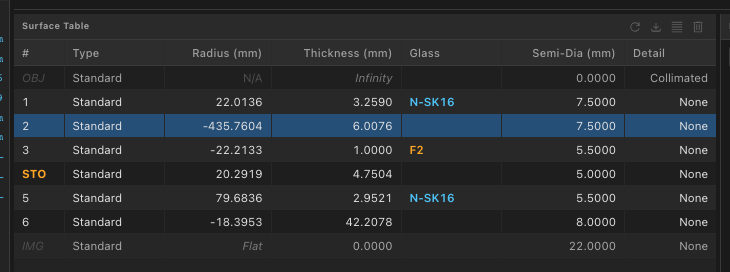
The table always starts with an Object surface (row 0) and ends with an Image surface. Every row in between is a physical optical surface or a gap.
| Column | Description |
|---|---|
| Radius | Radius of curvature in mm. Positive = center of curvature to the right. Inf = flat. |
| Thickness | Axial distance to the next surface in mm. |
| Glass | Material name (e.g. N-BK7) or blank for air. |
| Semi-Diam. | Clear aperture radius in mm. Auto-calculated if left blank. |
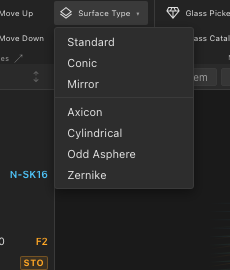
| Type | Standard, Conic, Mirror, etc. Most surfaces are Standard. |
To add a surface, right-click any row and choose Insert Surface After. To delete a surface, right-click and choose Delete Surface.
Double-click any surface row to open the Surface Properties dialog for full control over that surface.
6.2 Glass
Click directly on any Glass cell in the surface table to open the Glass Picker. You can search by name, filter by catalog (Schott, Ohara, Hoya, and others), or enter a custom index and Abbe number.
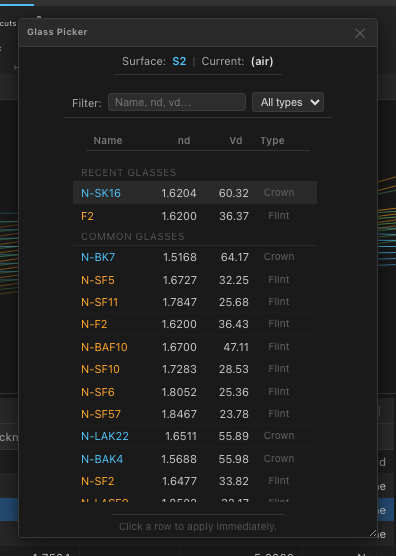
Leave the Glass cell blank to use air (n = 1.000). For mirrors, set Glass to MIRROR — Trefoila handles the sign reversal automatically.
SK16 — to narrow the list instantly. The picker shows the refractive index, Abbe number, and partial dispersion for the selected material.
6.3 Fields & Aperture
Click the Setup tab, then click Fields to open the fields dialog. Each field point defines an angle (for infinite-conjugate systems) or an object height (for finite conjugate systems) at which the system is evaluated.
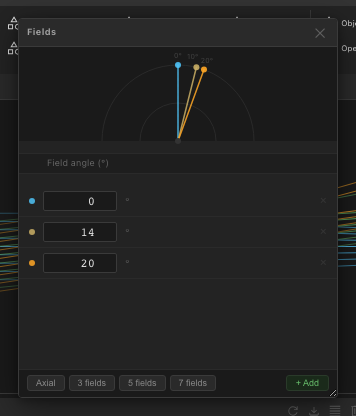
Add field points by clicking Add Field. A typical starting set is three fields: on-axis (0°), 70 % of full field, and full field. Analysis panels color-code results by field point so you can compare them at a glance.
Back in the Setup tab, click Aperture to set the entrance pupil diameter (EPD). You can also specify the aperture as an image-space f-number or numerical aperture depending on your design intent.

7. Running Your First Analysis
Once a system is defined, open analysis panels from the Analysis tab. Each panel is independent and can be open simultaneously.
Spot Diagram
Click Analysis → Spot Diagram. A grid of spot plots appears, one cell per field point. The geometric RMS spot radius is shown below each cell.
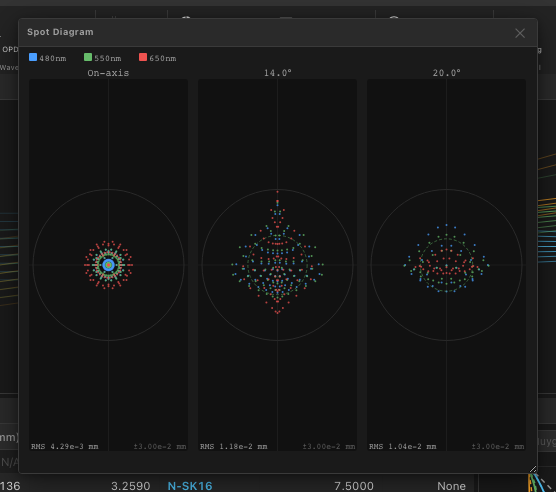
Each wavelength is plotted in a different color. The Airy disk radius is shown as a reference circle when the system is diffraction-limited or near it. Pan and zoom individual cells with the mouse.
Ray Fan
Click Analysis → Ray Fan. The tangential (T) and sagittal (S) fans are shown for each field point. The horizontal axis is normalized pupil coordinate; the vertical axis is transverse aberration in mm.
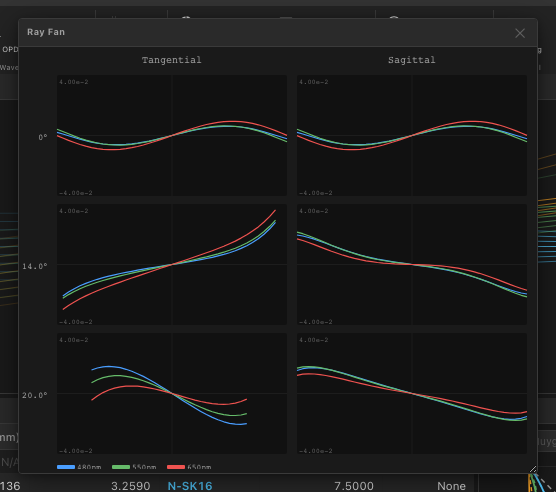
S-shaped curves indicate third-order spherical aberration. Straight sloped lines indicate defocus. Asymmetry between T and S fans indicates astigmatism or coma.
MTF
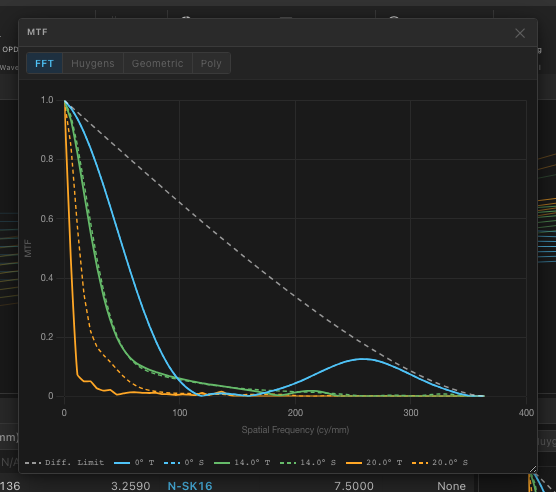
Click Analysis → MTF. The modulation transfer function is plotted against spatial frequency (cycles/mm at the image plane) for each field point, tangential and sagittal separately.
8. Optimization
Trefoila's optimizer adjusts surface radii, thicknesses, glass indices, and conic constants to minimize a merit function you define. This section walks through the essentials.
- Click the Optimization tab, then click Optimization Studio to open the combined setup panel.
- Set variables. In the Variables section, check the radius or thickness of each surface you want the optimizer to change. A blue V badge appears on those cells in the surface table.
- Define the merit function. The default merit function minimizes RMS wavefront error across all fields and wavelengths, which is a practical starting point for most designs. Add custom operands (focal length, distortion, back focal distance, etc.) from the operand list.
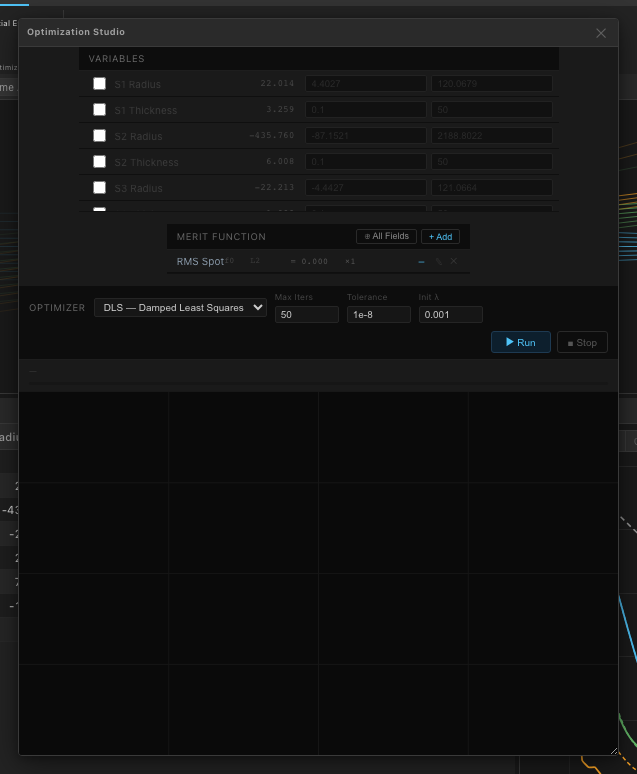
- Click Run. The merit function value is shown in real time as the optimizer iterates. Analysis panels that are open update live so you can watch the design improve.
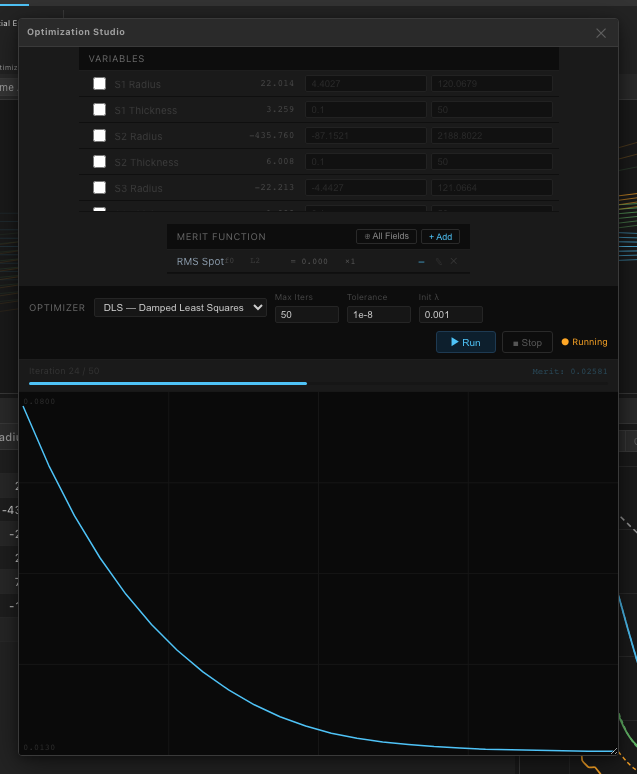
Trefoila offers four algorithms selectable from the optimizer toolbar:
| Algorithm | Best for |
|---|---|
| DLS (Damped Least Squares) | Polishing a near-final design; fast convergence when close to optimum |
| Nelder-Mead | Non-differentiable merit functions; robust but slow |
| Differential Evolution | Global search with many variables; good for finding fundamentally better forms |
| Hybrid DE+DLS | Global search followed by local polish; a solid default for new designs |
9. Saving Your Work
Save
Press Ctrl/Cmd+S or click File → Save. Projects are saved in the .trf format — plain JSON text that is fully human-readable and diff-friendly for version control.
.trf files are plain JSON, you can track your optical designs in git just like source code. Every surface parameter change produces a clean, reviewable diff.
Save As
Use Ctrl/Cmd+Shift+S to save to a new filename. This is useful when creating design variants or when working from a sample file you want to keep unmodified.
Export
Use File → Export to share designs. Export options include:
- PNG / SVG — export the 2D layout or any analysis plot as an image
- CSV — export surface data, aberration tables, or MTF data for use in spreadsheets or reports
.trf files do not contain glass catalog data — they reference glasses by name. This keeps file sizes small and ensures designs pick up any catalog updates automatically on reload.
You now have everything you need to explore Trefoila. For detailed documentation on any feature — surface types, advanced apertures, tolerancing, coatings, the file format — see the User Manual.
Trefoila v0.2.0 · © 2026 Blake Griffiths · All rights reserved